
 By
By Here’s something most people don’t realise until it’s too late: SSDs don’t warn you before they die. Unlike old hard drives that would click and grind for months before failing, solid-state drives often just… stop working. One day your PC boots fine. The next? A blank screen and that sinking feeling in your stomach.
I’ve seen it happen to friends, colleagues, and countless forum posts from frustrated UK users. Gaming PCs that won’t load saves. Student laptops that lose dissertations days before deadlines. Work computers that forget everything overnight.
The good news? You can absolutely check your SSD health before anything goes wrong. It takes about two minutes, requires zero technical expertise, and could save you hours of heartache.
This guide is written for regular people. Whether you’re a student in Manchester, a gamer in Glasgow, or just someone who wants their laptop to last, I’ll show you exactly how to check if your SSD is healthy or heading for disaster.
Let’s dive in.
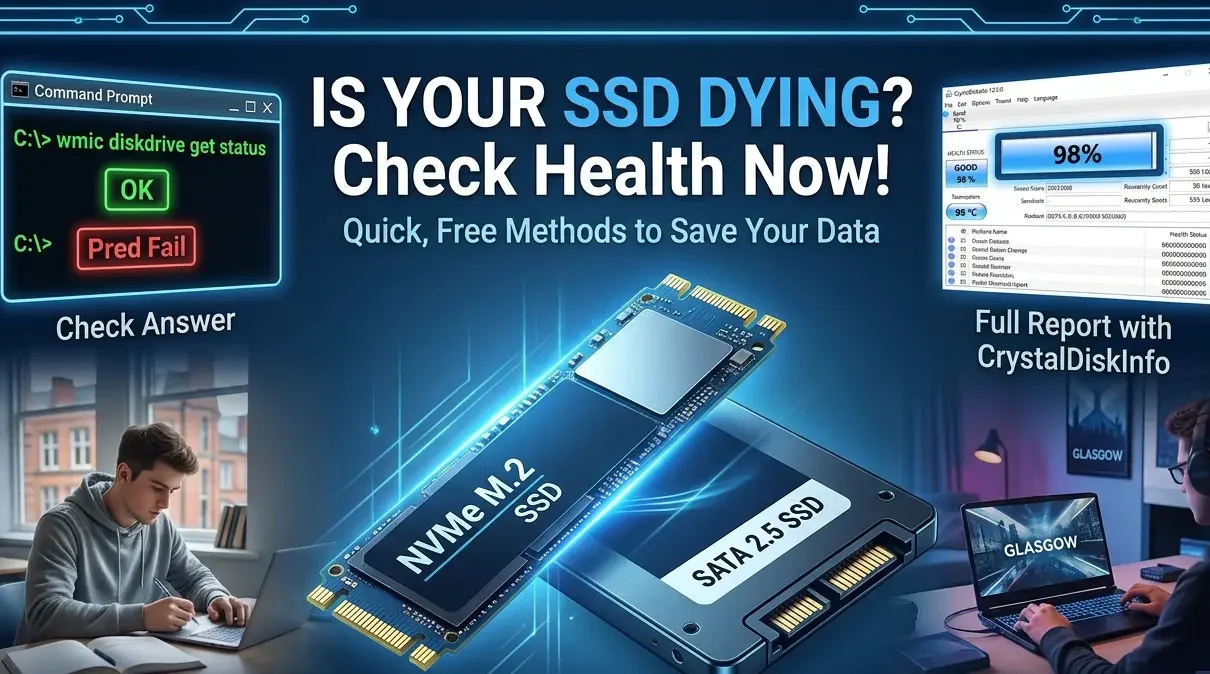
Quick Answer: How Do I Check SSD Health?
Here’s the fastest way to check your SSD health on Windows 11 or Windows 10:
- Open Command Prompt as Administrator (search “cmd” → right-click → Run as Administrator)
- Type:
wmic diskdrive get status→ Press Enter - See “OK”? Your drive passes basic SMART health checks
- See “Pred Fail”? Back up your data immediately and replace the drive
For a detailed health report (easier to understand):
- Download CrystalDiskInfo (free)
- Install and open it
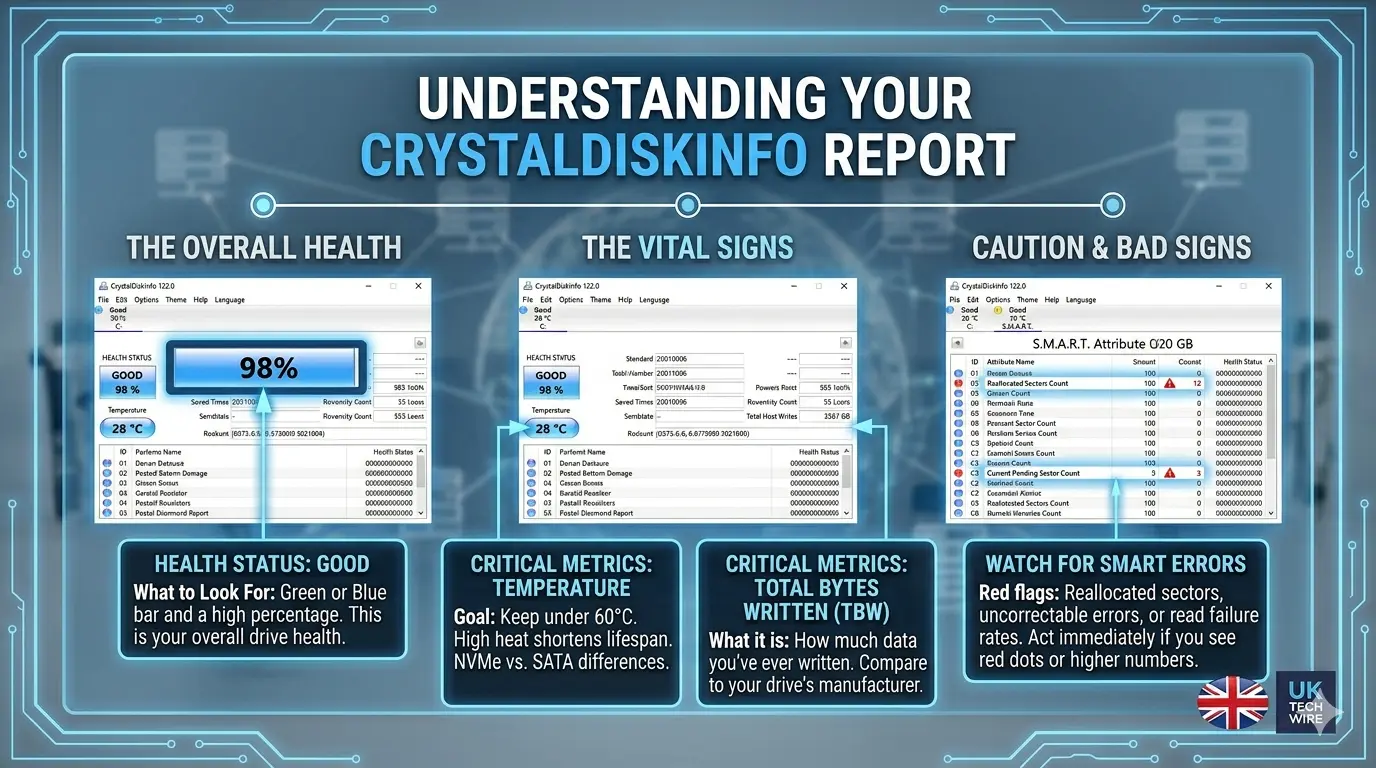
- Look for “Health Status” (Good, Caution, or Bad)
- Check the temperature (keep below 70°C)
That’s it. No complicated commands, no paid software, no confusion.
What Actually Is SSD Health?
Let me explain this simply. Your SSD has a built-in self-monitoring system called SMART (Self-Monitoring, Analysis, and Reporting Technology). Think of it like a car’s dashboard warning lights, but way more detailed.
SMART tracks several key metrics that tell you how your drive is doing:
| Metric | What It Means | When to Worry |
|---|---|---|
| Health Status | Overall condition (Good/Caution/Bad) | Anything below Good |
| Temperature | How hot your drive runs | Above 70°C consistently |
| TBW (Total Bytes Written) | How much data you’ve written over time | Approaching manufacturer limit |
| Reallocated Sectors | Bad memory blocks replaced with spares | Any number above 0 |
| SMART Errors | Critical failure warnings | Any errors = act now |
Here’s the key thing most people miss: SSDs wear out based on how much you write to them, not how long you’ve owned them. A five-year-old office PC that barely gets used might be healthier than a one-year-old gaming rig constantly installing and deleting massive game files.
For UK users, this matters because we tend to hold onto our laptops longer than the US market. A 2019 laptop with an original SSD might still run Windows 11 fine, but that drive could be near its end of life without showing obvious symptoms.
How to Check SSD Health: Step-by-Step
I’ll show you three methods. Start with Method 1 if you want the quickest answer. Use Method 2 for the most detailed report. Skip Method 3 unless you’re a tech enthusiast.
Method 1: Windows Built-in Tools (Fastest)
Option A: Command Prompt (30 seconds)
- Press
Windows + R, typecmd, then pressCtrl + Shift + Enter(runs as administrator) - Type this command exactly:
wmic diskdrive get status - Press Enter
What you’ll see:
- OK = Your drive passes basic SMART checks (good start, but not the full picture)
- Pred Fail = Predicted failure. Back up everything right now and replace the drive
Option B: PowerShell (More Detail)
- Right-click the Start button → select Terminal (Admin) or Windows PowerShell (Admin)
- Type:
Get-PhysicalDisk | Select-Object FriendlyName, HealthStatus, OperationalStatus - Press Enter
This shows you all drives and their basic health status. Look for HealthStatus: Healthy. Anything else needs investigation.
Honest opinion: The built-in Windows tools are fine for a quick sanity check, but they won’t show you temperature, TBW, or detailed warnings. For those, you need dedicated software.
Method 2: Free Software Tools (Recommended)
CrystalDiskInfo is the gold standard. It’s free, portable (no installation required), and works on every version of Windows from 7 to 11.
Step-by-step:
- Go to Crystalmark.info (official site)
- Download the Standard Edition
(portable ZIP file recommended) - Extract the ZIP folder to your Desktop
- Run DiskInfo64.exe
(or DiskInfo32.exe for older PCs) - Look at the big coloured bar at the top:
- Blue or Green = Good health (you’re fine)
- Yellow = Caution (start planning a replacement)
- Red = Bad (replace immediately)
- Check these specific values:
- Temperature: Under 60°C ideally, definitely under 70°C
- Total Host Writes: Compare to your drive’s TBW rating
(check manufacturer specs) - Percentage Used:
Some drives show this directly
(100% = end of life)
Real-world example: Last month, I checked a friend’s gaming laptop. CrystalDiskInfo showed “Caution” at 95% used lifespan. He had no idea. Two weeks later, the drive started crashing. We replaced it just in time.
Method 3: Manufacturer Tools (Most Accurate)
If you know your SSD brand, use their official tool. These often show warranty status and firmware updates too.
| Brand | Tool Name | Best For |
|---|---|---|
| Samsung | Samsung Magician | NVMe & SATA SSDs |
| WD / SanDisk | Western Digital Dashboard | All WD drives |
| Crucial | Crucial Storage Executive | Micron/Crucial SSDs |
| Kingston | Kingston SSD Manager | Kingston drives |
| Seagate | SeaTools | Seagate SSDs |
To find your SSD brand:
- Press
Ctrl + Shift + Escto open Task Manager - Go to Performance tab → click Disk 0 (or Disk 1, etc.)
- Look for the model name (e.g., “Samsung 980 Pro”)
For more PC performance tips and hardware guides, check out the latest articles on UK Tech Wire.
Best SSD Health Monitoring Tools for 2026 (Comparison)
| Tool | Free? | Best Feature | UK User Note |
|---|---|---|---|
| CrystalDiskInfo | Yes | Shows TBW and temperature clearly | Portable version works anywhere |
| Samsung Magician | Yes (Samsung only) | Performance benchmark + firmware updates | Includes UK warranty check |
| WD Dashboard | Yes (WD only) | Simple health status + drive wipe tool | Good for popular UK retail drives |
| Hard Disk Sentinel | Paid (£24) | Proactive alerts via email | Overkill for most home users |
| Speccy | Free version | Shows health plus full PC specs | UK users like Piriform tools |
My recommendation for UK readers: Start with CrystalDiskInfo. It’s completely free, doesn’t install any junk, and gives you everything you need in one screen.
Signs Your SSD Is Failing (Watch For These)
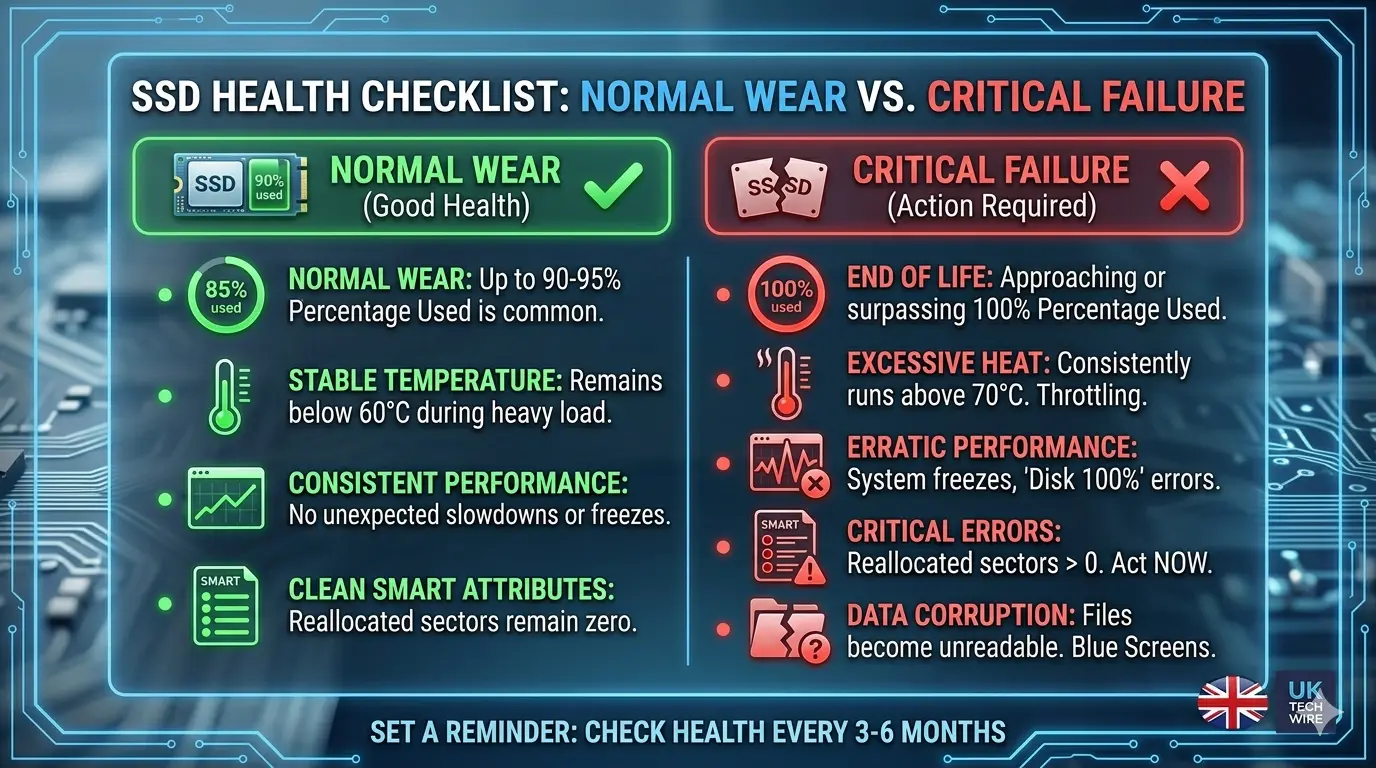
SMART warnings are the most reliable indicator, but sometimes your PC shows symptoms first. Here’s what to watch for:
Common warning signs:
- Files take forever to open (especially small documents)
- “Disk usage 100%” in Task Manager with no obvious reason
- Frequent blue screens mentioning “critical_process_died” or “kmode_exception”
- Files become corrupted (photos won’t open, Word docs show gibberish)
- Your PC freezes on boot or takes several tries to start
Important nuance: These symptoms can also mean a failing cable, motherboard issue, or Windows corruption. Don’t panic and replace your drive immediately. Check the SMART data first.
When to actually worry:
- CrystalDiskInfo shows Yellow (Caution) or Red (Bad)
- Windows Command Prompt returns “Pred Fail”
- You see increasing reallocated sectors (check over several weeks)
- The drive temperature is constantly above 75°C
For AI in computing and how machine learning helps predict drive failures, UK Tech Wire has some fascinating deep dives.
How Often Should You Check SSD Health?
This depends on how you use your PC. Here’s my practical UK-focused advice:
| User Type | Check Frequency | Why |
|---|---|---|
| Casual user (emails, web browsing) | Every 6 months | Low write activity, drive lasts 5-10 years |
| Student (lecture notes, streaming) | Every 3-4 months | Moderate writes, dissertation risk is real |
| Gamer (frequent installs/uninstalls) | Every 2 months | Game updates and downloads use TBW quickly |
| Content creator (video editing, 3D work) | Monthly | High write volumes, replace every 2-3 years |
| Office/work PC (documents, databases) | Every 3 months | Business continuity matters |
Set a calendar reminder. I use the first Sunday of every season (March, June, September, December). Takes two minutes. Could save your data.
Tips to Improve SSD Lifespan (UK Edition)
You can’t stop your SSD from eventually wearing out, but you can absolutely slow down the process. Here’s how.
1. Keep It Cool
Heat is the silent killer of SSDs, especially NVMe drives in cramped laptops. UK homes might be cooler than Texas, but gaming laptops still run hot.
Practical steps:
- Don’t block your laptop’s air vents (I know, the duvet is comfy, but stop it)
- Consider a laptop cooling pad (£15-£30 on Amazon UK)
- Desktop users: ensure case fans are working and dust-free
2. Disable Defragmentation (Yes, Really)
Windows automatically defragments drives weekly. This is great for old hard drives but actually wears out SSDs.
Check this setting:
- Search “Defragment and Optimize Drives“
- Look at “Media type” for your SSD (should say “Solid state drive”)
- Ensure scheduled optimisation is set to “TRIM” not defrag
Most modern Windows versions handle this automatically, but it’s worth a quick check.
3. Update Your Firmware
Manufacturers release firmware updates that improve performance and fix bugs that cause unnecessary writes.
How to update:
- Download your manufacturer’s tool (Samsung Magician, WD Dashboard, etc.)
- Run it and look for “Firmware Update”
- Follow the instructions (usually one click)
4. Move Your Pagefile (Advanced)
Windows uses a “pagefile” as virtual RAM, constantly writing and rewriting. If you have two drives, move the pagefile to a secondary drive.
When to bother: Only if you have multiple drives and very high write workloads (video editing, databases). For most UK home users, this isn’t worth the hassle.
5. Back Up Your Data (The Real Lifesaver)
Here’s the uncomfortable truth: even a healthy SSD can die suddenly from a power surge or controller failure. Health monitoring helps, but it’s not a backup.
The 3-2-1 rule for UK users:
- 3 copies of your data
- 2 different storage types (SSD + external drive or cloud)
- 1 copy stored off-site (cloud works fine)
Free/cheap options:
- OneDrive: 5GB free with Microsoft account (upgrade available)
- Google Drive: 15GB free with Gmail account
- External HDD: £40-£60 from Currys or Amazon for 1TB
Stay updated with the latest UK tech news including storage deals and backup solutions on UK Tech Wire.
FAQs
Q1: How do I check my SSD health in Windows 11 without installing software?
Open Command Prompt as administrator, type wmic diskdrive get status, and press Enter. If you see “OK,” your drive passes basic health checks. “Pred Fail” means replace immediately. This takes 10 seconds.
Q2: What is a good SSD health percentage?
Anything above 80% is excellent. Between 50% and 80% means normal wear. Below 50% means start planning a replacement. Below 20% is critical—back up your data now and replace the drive.
Q3: Can a dying SSD cause Windows to freeze?
Yes, frequently. Failing SSDs trigger constant read/write errors that make Windows wait for responses that never come. This causes freezing, stuttering, and the infamous “100% disk usage” in Task Manager even with nothing open.
Q4: How long do SSDs actually last in normal UK home use?
Most modern SSDs last 5 to 10 years for typical users. A £50 budget drive might fail earlier. A Samsung or Crucial drive often outlasts the computer itself. Heavy gamers and video editors reduce this to 2-4 years.
Q5: Is CrystalDiskInfo safe to download and use?
Yes, it’s completely safe and widely trusted. Only download from the official crystalmark.info website. Avoid third-party download sites that bundle adware. Use the portable ZIP version to avoid installation entirely.
Q6: What does “Percentage Used” mean in SSD health tools?
It shows how much of your drive’s rated lifespan you’ve consumed. 100% means the manufacturer estimates end-of-life. Your drive might still work beyond this, but failure risk increases significantly. Replace when you hit 80-90% for safety.
Q7: Does defragging an SSD damage it?
Yes, defragmentation performs unnecessary write operations that wear out SSD memory cells. Windows automatically uses TRIM instead of defrag for SSDs, but manually running defrag on an SSD will reduce its lifespan without improving performance.
Q8: How do I check NVMe SSD health specifically?
Use CrystalDiskInfo or your manufacturer’s tool (Samsung Magician for Samsung NVMe drives). NVMe drives show the same SMART data plus additional metrics like PCIe errors and thermal throttling history. The process is identical to SATA SSDs.
Conclusion
Checking your SSD health isn’t complicated, expensive, or time-consuming. It’s one of those ten-minute investments that could save you from losing years of photos, documents, and game saves.
Here’s your action plan for today:
- Download CrystalDiskInfo (two minutes)
- Run it and check your health status (30 seconds)
- If it’s green, set a calendar reminder for three months from now
- If it’s yellow or red, buy a replacement drive and clone your data immediately
- Back up anything you can’t lose (do this even if your drive is healthy)
And honestly? Even if your SSD is perfectly fine, take five minutes to check your backups. I’ve seen too many “it was working yesterday” sob stories on UK tech forums.
Have questions about your specific SSD? Drop a comment below. And for more practical guides, PC performance tips, and the latest UK tech news, bookmark UK Tech Wire and check back regularly.
Your data is worth two minutes of your time. Go check that drive.
Happy computing!

Jalees Ur Rehman is an SEO professional with 13+ years of experience in SEO and Digital Marketing. He helps businesses grow organic traffic and conversions through data-driven digital marketing strategies and practical execution.
1 Comment