
 By
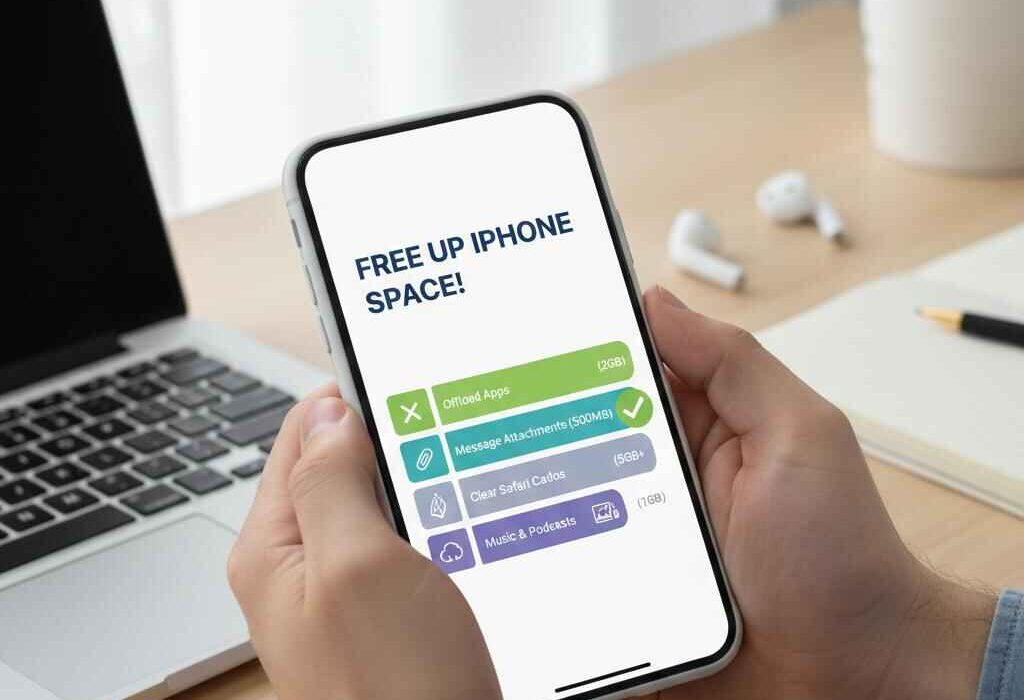
By iPhone storage woes hit hard in 2026 with iOS 26’s hefty updates and 4K videos filling drives. No need to delete cherished photos for iPhone storage full fix here, as smart tricks reclaim GBs safely. This iCloud storage guide covers freeing up iPhone storage via optimizing iPhone storage settings, offloading iPhone apps, and more.
Follow these iPhone space-saving tips for iOS 26; tested on iPhone 16 series.
Check Your Storage—Breakdown First
Start at Settings > General > iPhone Storage. iOS 26 shows color-coded charts: Photos (the biggest culprit), Apps, System Data, and Messages.
Recommendations appear: “Offload Unused Apps,” “Optimize Photos.” Tap to apply instantly. This often frees 5-10GB.
Reduce iPhone system data (often 10-20GB): Review “Review Large Files” for duplicates.
1. Optimize iPhone Storage Settings for Photos
Optimize iPhone storage settings keeps full-res photos in iCloud, device thumbnails only, and saves up to 70-90% space without loss.
Setup:
- Settings > [Your Name] > iCloud > Photos > Optimize iPhone Storage.
- Enable iCloud Photos if off.
Full originals download on demand. iCloud storage guide: 50GB free tier; 200GB £2.99/mo UK.
2. Offload iPhone Apps (Keep Data, Ditch Size)
Offloading iPhone apps removes unused apps but retains documents/data for seamless reinstall.
Follow these steps:
- Settings > General > iPhone Storage > Enable Offload Unused Apps.
- Manual: Select app > Offload App.
Reinstall from App Store, data remains intact. Frees 1-5GB easily.
3. Clear Messages & Attachments
Messages hold a maximum GB of photos/videos.
Fix it with these steps:
- Settings > General > iPhone Storage > Messages > Review Large Attachments.
- Delete old GIFs/attachments (keeps texts).
Auto-delete attachments >1 year: Settings > Messages > Keep Messages > 1 Year.
4. Manage System Data & Cache
Reduce iPhone system data (caches, temps):
- Safari: Settings > Safari > Clear History & Website Data (1-3GB gain).
- Restart iPhone weekly clears temp files.
Third-party cleaners like CleanMyPhone are optional but unnecessary for iOS 26.
5. iPhone Space Saving Tips for Apps & Media
iPhone space-saving tips:
- Podcasts/Apple Music: Delete downloads (Settings > Apps > [App] > Downloaded).
- Books/News: Remove offline reads.
- App cleanup: Delete/reinstall heavy apps like games.
Review “Documents & Data” per app and delete caches.
6. iCloud Storage Guide: Smart Offloading
Have a look at the full iCloud storage optimizing guide:
- Optimize Storage for Photos/Music.
- Store files in iCloud Drive (Files app > Browse > iCloud Drive).
- Backup exclusions: Settings > [Name] > iCloud > Manage Storage > Backups exclude unused apps.
200GB plan is ideal for most (£2.99/mo).
7. Advanced Free Up iPhone Storage Tricks
- Large Emails: Mail app > Review Large Attachments.
- Recently Deleted: Photos > Albums > Recently Deleted > Select All > Delete.
- Passcode restart: Temporarily frees RAM/system cache.
- Update iOS 26.1+ for storage optimizations.
Storage Comparison Before/After Common Fixes
| Action | Space Saved (Avg iPhone 16) |
| Optimize Photos | 10-30GB |
| Offload Apps | 5-15GB |
| Clear Messages | 2-8GB |
| System Cache | 1-4GB |
| Total Potential | 20-60GB |
FAQs
How do I free up space on my iPhone without deleting photos?
Free up space on iPhone 2026 with Optimize Photos (iCloud full-reset, device thumbnails), offload apps, and clear messages/attachments. This process itself helps gain 20-50GB safely.
Why is my iPhone storage full?
Photos, apps, messages, and system data fill drives. iOS 26 Storage screen shows breakdowns; optimize/reduce first before deletions.
How to offload unused apps on iPhone?
Go to Settings > General > iPhone Storage > Offload Unused Apps to auto-removes. Manual per app. Data preserved for reinstall.
What is iPhone system data and how to reduce it?
Reduce iPhone system data (caches/logs): Clear Safari, restart device, review large files. 1-5GB typical gain.
Does iCloud free up iPhone storage?
Yes—iCloud storage guide: Optimize Photos/Music offloads to cloud. 50GB free; paid tiers for more.
Conclusion
Free up space on iPhone 2026 effortlessly with optimize iPhone storage settings, offload iPhone apps, and iCloud storage guide, all in one place. These iPhone space saving tips reclaim GBs sans photo sacrifices for iPhone storage full fix.
For more iPhone storage tips and tricks, bookmark UKtechwire and turn your notifications on for our newest blogs and updates!

Jalees Ur Rehman is an SEO professional with 13+ years of experience in SEO and Digital Marketing. He helps businesses grow organic traffic and conversions through data-driven digital marketing strategies and practical execution.